



Gentoo is a source-based Linux distribution known for its flexibility and performance, where software is compiled from source code on the machine itself, giving you precise control over features, optimizations, and dependencies. It’s a popular choice for developers and system administrators who want a lean, highly customized environment without the overhead of a general-purpose distro.
Setting up Gentoo Linux doesn’t have to mean spending hours compiling a system from scratch. Kamatera offers a ready-to-deploy Gentoo Linux app image, allowing you to launch a fully functional Gentoo server in just a few clicks. In this guide, we’ll cover everything from server setup to initial access to get you started quickly.
Log in to Kamatera cloud console
The very first step in deploying Gentoo on Kamatera is to log in to your Kamatera’s cloud management console.
My Cloud
Once logged in, you will be presented with the dashboard. This is where you’ll manage servers, networking, and storage.
Steps:
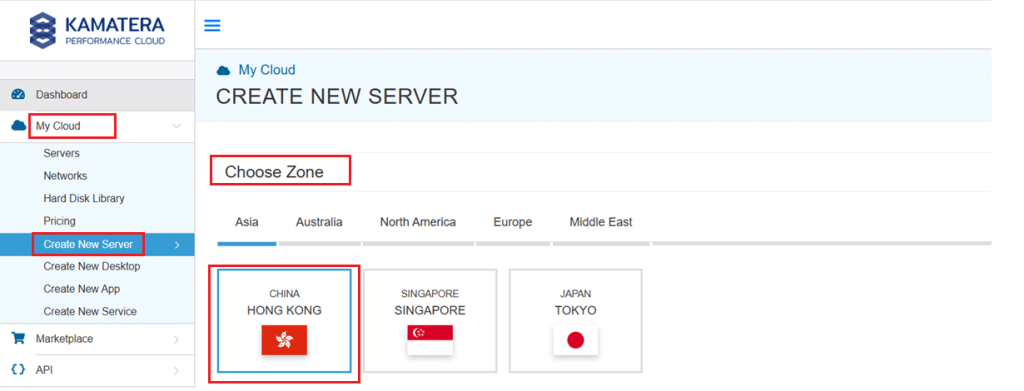
- Expand the My Cloud option on the right bar and choose Create New server. Under the create new server option, choose Zone.
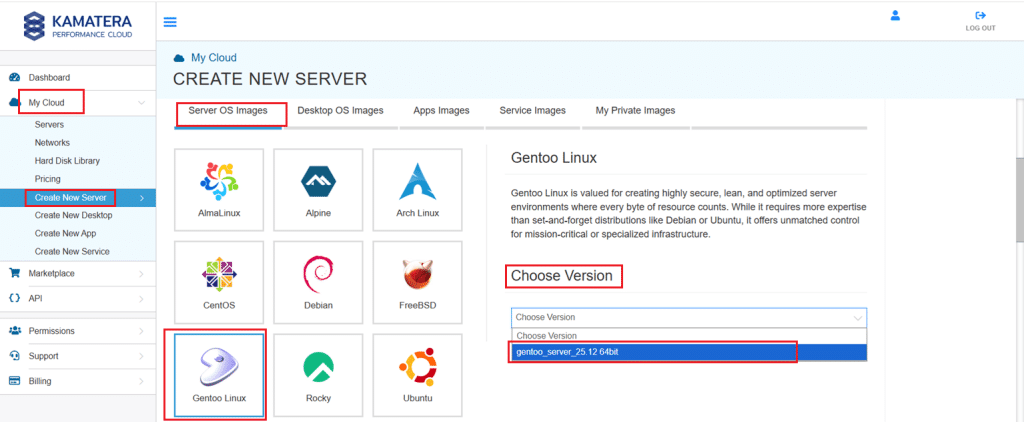
2. Scroll down and under the server OS Images tab, look for Gentoo Linux. Select it and then choose the latest version.
Select your server specifications
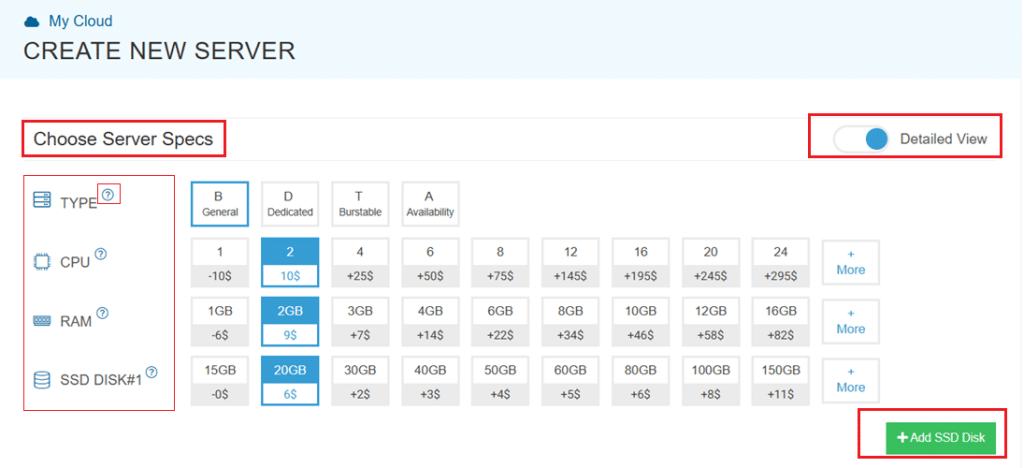
- Scroll down and enable the Detailed View toggle to check the pricing per configuration. Here’s where you’ll input your preferred server specifications.
- Choose the Type, CPU, RAM, and Disk storage. Click on the help button on the side to learn more about each setting. You can add more disk storage at any point in your server’s life.
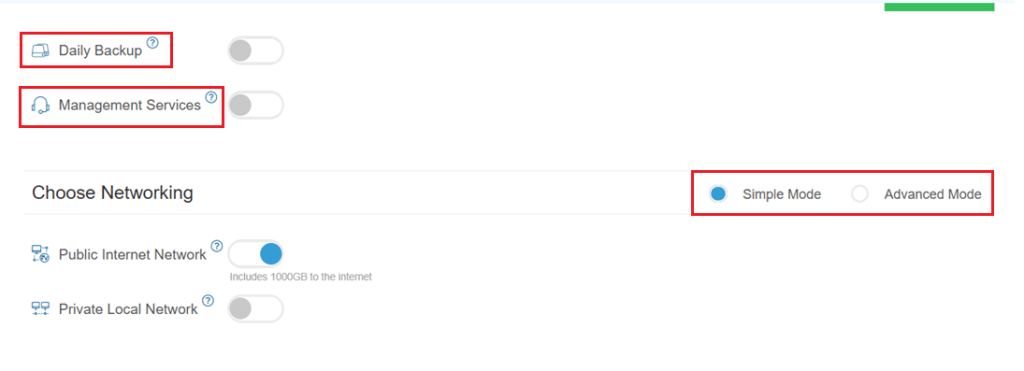
- Enable Daily backup option to enable a daily backup of your server storage.
- Enable Management Services toggle for a managed server option.
Configuring network and security settings
- Here we’ll choose either simple or advanced networking. This lets you define how your server will connect to the internet, and how much outbound data it can use per month.
- Simple Mode – Choose between WAN or LAN.
- Advanced Mode – NIC #1 (Network Interface Card)
- WAN (selected): This means your server will be accessible from the internet. It will get a public IP.
- The other options (LAN, Private, etc.) are only needed for internal or isolated setups.
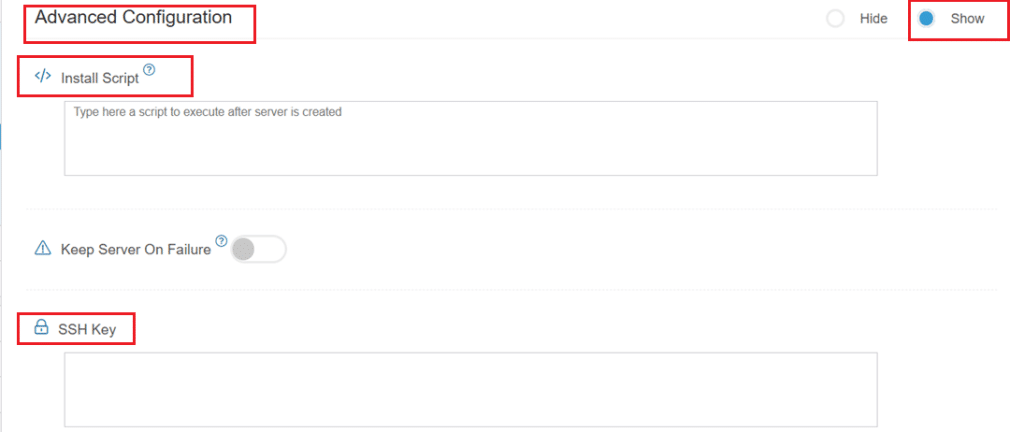
- Now, let’s look at Advanced Configuration:
- Keep Server On Failure: This option controls what happens if something goes wrong; for example, if a startup script fails while setting up your server. If this setting is OFF (default), Kamatera will automatically delete the server if the setup fails. It becomes useful if you want to avoid paying for a broken setup, but you won’t be able to debug what went wrong. If this setting is ON, Kamatera will keep the server running, even if something fails during the initial setup. This lets you log in, investigate the issue, fix problems manually, and retry setup if needed.
Recommended for most users:
Keep it OFF unless you’re running custom scripts or complex configurations. For basic setups like Gentoo, the default (OFF) is usually fine.
- SSH key: Allows you to securely connect to the server without a password (recommended for better security).
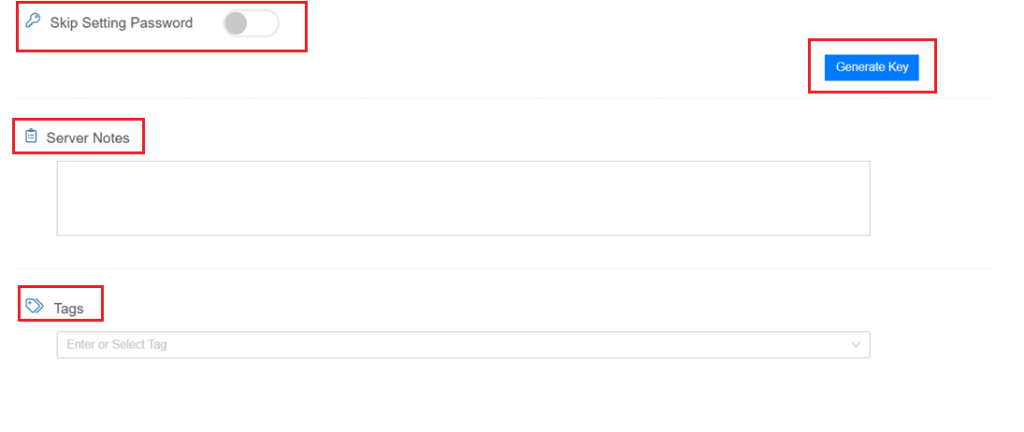
- Skip Setting Password: If enabled, your server will only allow SSH key login—no password access. You can click “Generate Key” if you don’t already have one. Input further server notes and tags if necessary.
Finalize deployment
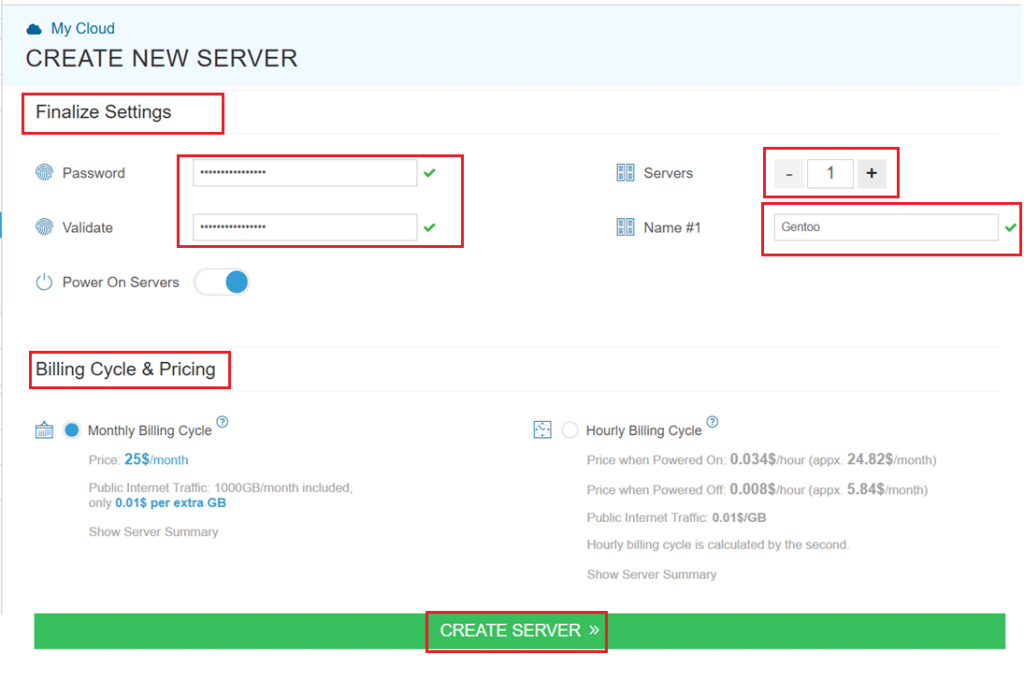
- Finally, choose a strong password, select the number of servers, and input a server name.
- Once you have added all the details, choose your billing cycle and click on Create server button.
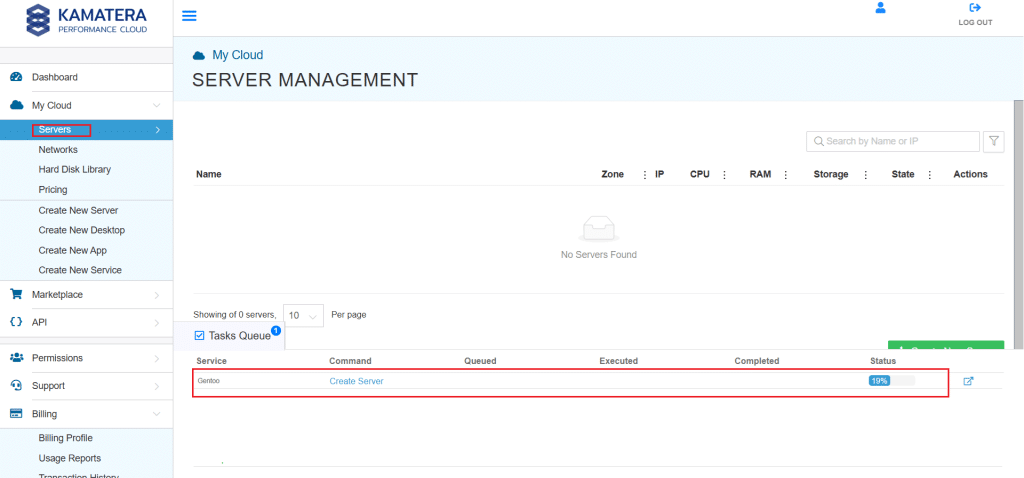
You can check the server creation progress under Server > Task Queue. Once created, you will see your server under the Servers panel.
To open the remote server further click on Connect and Open Remote Console. This will open the remote machine in a separate window, where you can access the console of the remote machine, as well. To disconnect the remote server, click Disconnect.
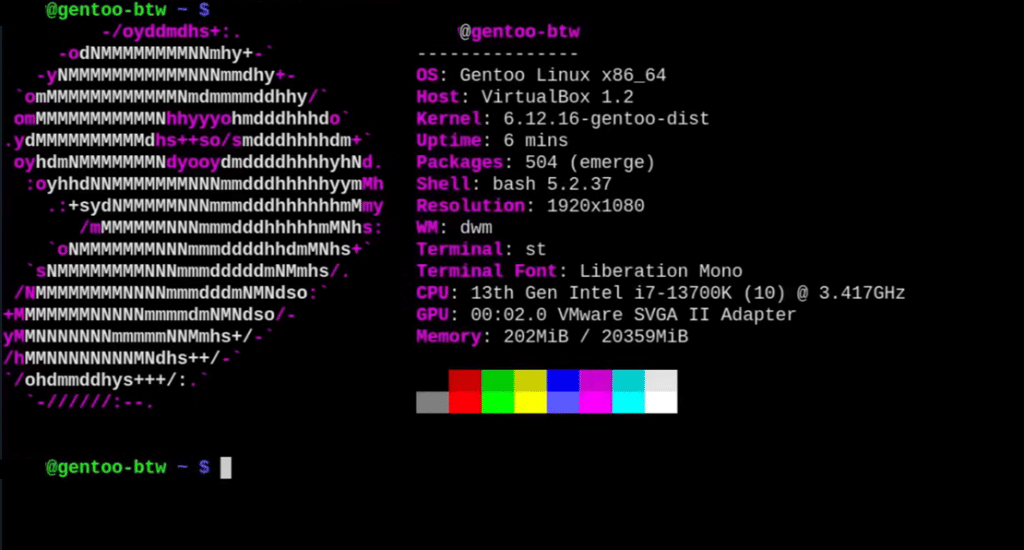
Once the server is deployed and accessed, the terminal interface will appear similar to this:
Customize your Gentoo environment
Using Kamatera’s Gentoo Linux app image provides an efficient way to get started with Gentoo without the complexity of a traditional manual installation. It allows you to quickly deploy a fully functional environment while benefiting from the flexibility and customization that Gentoo is known for.
As you become more familiar with Gentoo, you can further customize and optimize your system to suit your specific needs, making this setup both a convenient starting point and a scalable foundation for future use.