



Cron is the standard tool on Ubuntu (and most Linux distributions) for running commands and scripts on a schedule. Instead of manually running a backup script every night or checking disk usage every hour, you can hand the job to cron and let it run unattended, on whatever schedule you set.
This guide walks through the process from start to finish: provisioning a server, writing a task, scheduling it with cron, and editing or running tasks once they’re live.
Provisioning a server
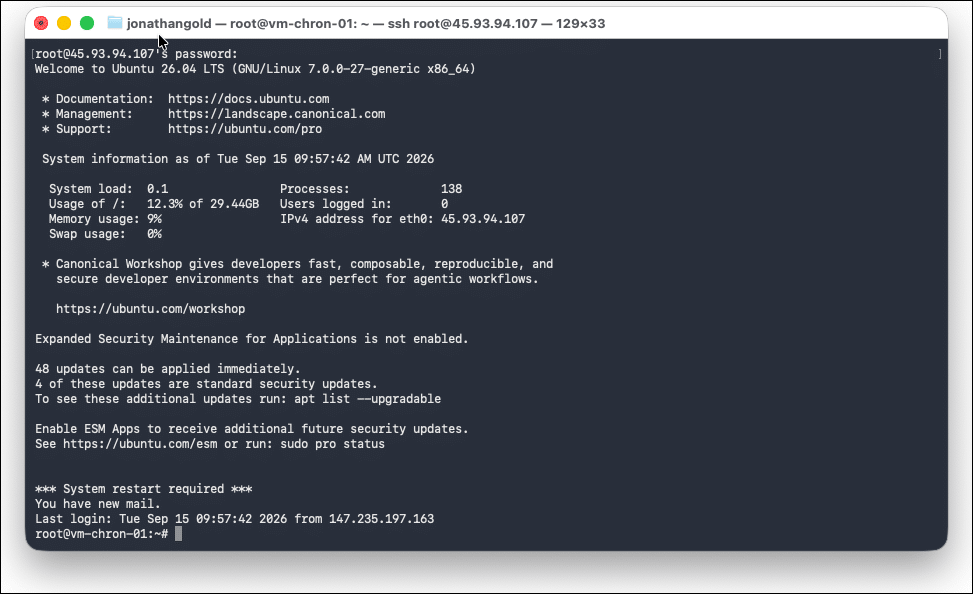
First, provision a Kamatera Ubuntu server as described here. After the server is provisioned, connect to it using the Kamatera console or a local SSH terminal window.
Building a task
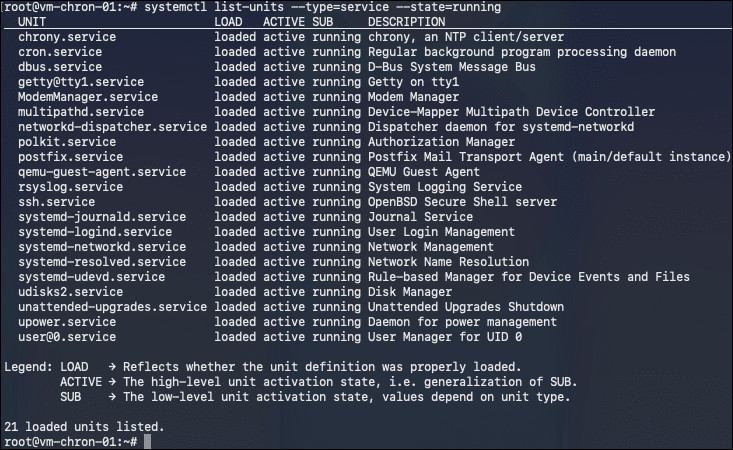
Our task is a simple Bash script that emails a list of running processes to a chosen recipient, using this command:
systemctl list-units --type=service --state=running
Before writing the script, install Ubuntu’s mailutils package:
apt install mailutils
Next, open an editor:
nano /root/service-status.sh
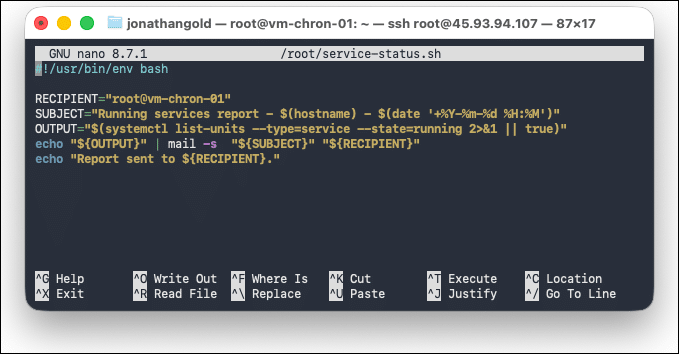
Paste this script:
bash
#!/usr/bin/env bash
RECIPIENT="you@example.com"
SUBJECT="Running services report - $(hostname) - $(date '+%Y-%m-%d %H:%M')"
OUTPUT="$(systemctl list-units --type=service --state=running 2>&1 || true)"
echo "${OUTPUT}" | mail -s "${SUBJECT}" "${RECIPIENT}"
echo "Report sent to ${RECIPIENT}."
Change RECIPIENT to the email address where you want the report delivered.
Scheduling tasks
The simplest way to schedule service-status.sh is to drop it into one of Ubuntu’s built-in cron directories: /etc/cron.hourly, /etc/cron.daily, /etc/cron.weekly, or /etc/cron.monthly.
Anything placed in these directories runs automatically on that interval, no further configuration needed.
For more control over exactly when a task runs, use a crontab file instead. Each line in a crontab follows this format:
minute hour day-of-month month day-of-week command
The first five fields set the schedule, and command is the script to run, optionally followed by a redirect to a log file. For example, this line runs the script every five minutes and logs the output to
/var/log/service-status/service-status.log:
*/5 * * * * /root/service-status.sh >> /var/log/service-status/service-status.log 2>&1
Here’s what each field accepts:
| Field | Values | Allows names | Example | Meaning |
|---|---|---|---|---|
| Minute | 0–59 | No | */15 |
Every 15 minutes |
| Hour | 0–23 | No | 0,12 |
Midnight and noon |
| Day of month | 1–31 | No | 1 |
The 1st of the month |
| Month | 1–12 | Yes (Jan–Dec) | * |
Every month |
| Day of week | 0–7 (0 and 7 = Sunday) | Yes (Sun–Sat) | 1-5 |
Monday through Friday |
Cron also provides shortcuts for common schedules: @reboot, @hourly, @daily, @weekly, and @monthly. @reboot runs the job once, immediately after the server restarts. @daily runs once a day at midnight.
You can also use these special characters in any field:
Asterisk (*) matches every value.
Comma (,) lists specific values, for example 1,15.
Hyphen (-) defines a range, for example 9-17 for 9 AM through 5 PM.
Slash (/) sets an increment, for example */5 for every 5 units.
Editing and running crontab
To edit your crontab, run:
crontab -e
The first time you run this command, Ubuntu asks you to choose a text editor.
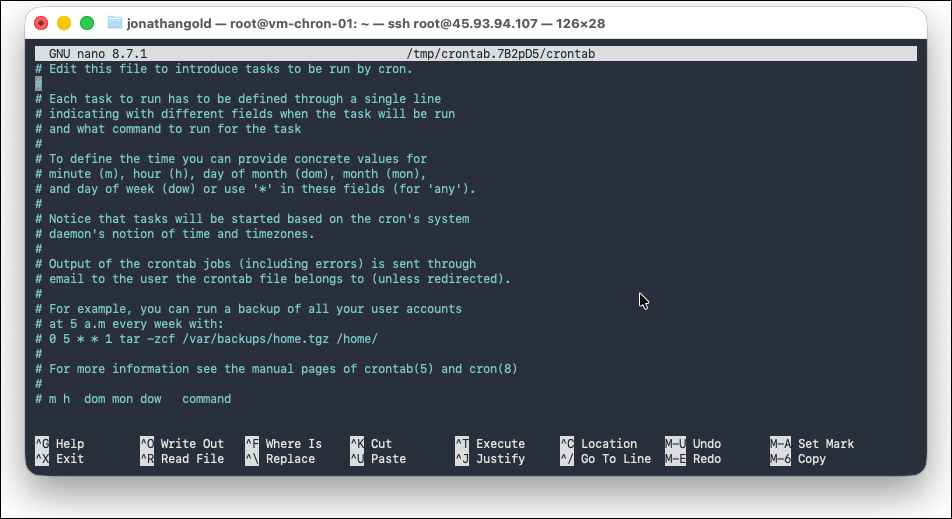
To run the script every five minutes, add:
*/5 * * * * /root/service-status.sh >> /var/log/service-status/service-status.log 2>&1

Crontab compiles your changes automatically each time you save and exit the editor. To view your current cron jobs, run:
crontab -l
To remove all cron jobs for the current user, run:
crontab -r
Conclusion
Cron turns one-off scripts into scheduled, unattended tasks. Once a script runs correctly on its own, scheduling it takes one line in a crontab, and you have full control over exactly when and how often it runs.