



Applications and services use RAM to hold the data they need while they run. The more applications and processes a server runs, the more RAM it may need.
When available RAM runs low, Linux can move less frequently used data from RAM to a reserved area on disk called swap. This gives active applications more room to keep running. Swap is useful on servers with a small amount of RAM, or when an application temporarily uses more memory than usual, such as when running a database, a web server, or multiple applications at once.
Swap can help during temporary increases in memory usage, but it is not a replacement for RAM. If the server frequently runs low on memory, adding RAM may be a better solution.
In this guide, you will learn how to check the current RAM and swap usage on your Kamatera Ubuntu server and how to configure or resize a swap file.
Provision a server
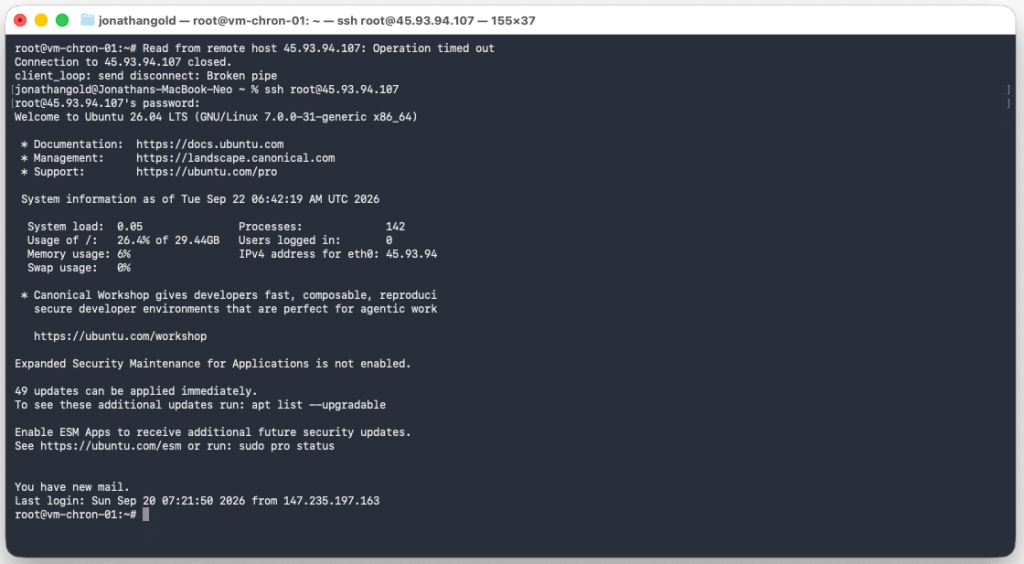
First, provision a Kamatera server (see How to operate a Linux server on Kamatera). Then connect to the server through the Kamatera console or a local SSH terminal.
Check current swap and disk space
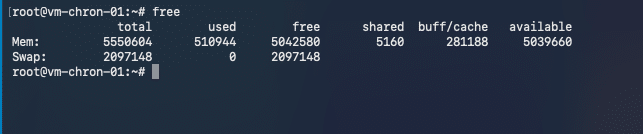
Display current memory and swap usage:
free -h
This displays all swap areas that are currently active on the server. This command helps you check whether swap is already configured, where it is located (for example, /swapfile), and its current size
List active swap files and partitions with swapon –show, which displays all swap areas that are currently active on the server. This command helps you check whether swap is already configured, where it is located (for example, /swapfile), and its current size.
swapon --show
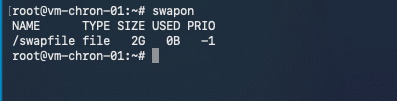
The steps below assume swap is a file at /swapfile. If swapon –show lists a different path or a partition, adjust the commands to match.
Confirm the disk has room for the new swap file with the df command, which displays the total, used, and available disk space on the server. It is important to check the available disk space before creating a new swap file because the swap file uses space on the disk.
df -h
Resize the swap file
This example sets swap to 4G. To decrease swap, use the same steps with a smaller value in the fallocate command.
The fallocate command creates the /swapfile file and allocates 4 GB of disk space to it. You can replace 4G with the amount of swap space you want to create.
- fallocate creates and allocates space for the file
- -l 4G sets the file size to 4 GB
- /swapfile the name and location of the file
Turn off the existing swap file, with swapoff /swapfile, which disables the existing /swapfile” so Linux stops using it as swap.
This must be done before removing or recreating the swap file. Use this path only if “swapon –show” confirms that your existing swap file is “/swapfile”.
swapoff /swapfile
NOTE: Before disabling the existing swap file, make sure the server has enough available RAM. Disabling swap may fail if the server does not have enough memory available.
Remove the old file so the new size takes effect, whether you are increasing or decreasing swap. In this case, the old /swapfile is removed so a new swap file can be created with the required size. Make sure swap has been disabled with swapoff before removing the file.
Note: rm permanently deletes the specified file. Make sure the path is correct before running the command.
rm /swapfile
Allocate the new size:
fallocate -l 4G /swapfile
Restrict access with the chmod command, so only root can read the file. The chmod command changes the file permissions. The value 600 allows only the file owner (root) to read and write to the swap file, preventing other users from accessing its contents.
chmod 600 /swapfile
Format the file as swap with the mkswap command, which prepares the /swapfile file so Linux can use it as swap space. This does not enable the swap file yet; it will be enabled in the next step with the swapon command.
mkswap /swapfile

Now, you can enable the swap file with the swapon command, which activates /swapfile, allowing Linux to start using it as swap space when needed.:
swapon /swapfile
Make the change persistent
Now, we’ll check whether /etc/fstab already has a swap entry. This grep command searches /etc/fstab for an existing swap entry. An entry in this file allows Linux to enable the configured swap automatically when the server starts.
grep swap /etc/fstab
If nothing is returned, add one, so the swap file is enabled after a reboot:
echo '/swapfile none swap sw 0 0' | tee -a /etc/fstab
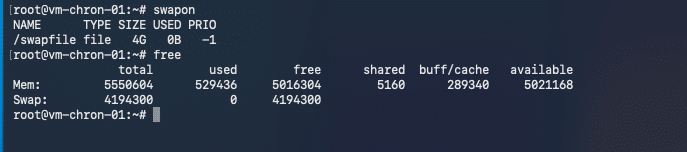
Verify the new swap size with free -f, which displays the current RAM and swap usage on the server. The -h option shows the values in an easy-to-read format, such as MB or GB. The swapon –show command displays all swap areas that are currently active on the server. This command helps you check whether swap is already configured, where it is located (for example, /swapfile), and its current size.
swapon --show
free -h
Conclusion
Swap helps a server ride out short memory spikes and avoid out-of-memory kills, but it can’t make up for a workload that consistently needs more RAM. If you find your server relying heavily on swap, consider increasing its RAM instead.