



URLs change for plenty of legitimate reasons: a site gets restructured, a page gets renamed, content moves to a new section. redirects make sure visitors and search engines still find the page. NGINX handles this with rules that issue an HTTP 301 Moved Permanently response, sending visitors and crawlers straight to the new address, so nothing breaks and no traffic is lost.
Problems start when a redirect rule ends up pointing back to itself, whether directly or through a chain of other rules. The result is a redirect loop: the URL keeps resolving to itself (or cycling through a set of URLs) and never actually loads. This article walks through how to detect a redirect loop, why it happens, and how to fix it.
Note: This article assumes NGINX is already installed on your Kamatera Ubuntu instance. For installation help, see How to Install NGINX on Your Ubuntu 22.04 Host Server and Setting Up a LEMP Stack on Kamatera for Web Development.
What causes redirect loops
For simple and reliable NGINX redirects, wrap a return directive in a location block:
location = <source> { return <code> <URL>; }
<source> is the source page’s location. <code> is the HTTP status code the URL returns, such as 301 for permanent redirects. <URL> is the final destination. Here’s a basic example:
location = /old { return 301 /new; }
location/return blocks are reliable but not flexible, which is why the rewrite directive exists. rewrite transforms the URL using regular expressions, so it can match and redirect patterns dynamically:
rewrite <regex> <url> [flag];
<regex> is a pattern to match. <URL> is a literal URL or pattern to match.
In this example, the <url>matches the path /articles/id and rewrites it to /blog/post-id
rewrite ^/articles/([0-9]+)$ /blog/post-$1;
To modify rule behavior, you can add an optional flag:
- last: stops processing the current set of rewrite rules and starts a new search for a matching location using the rewritten URI
- redirect: returns a temporary redirect (HTTP 302) status code
- permanent: returns a permanent redirect (HTTP 301) status code
- break: stops processing rewrite rules immediately, without starting a new location search
When rewrite directives are misconfigured, placed in the wrong location, or don’t follow NGINX’s matching rules, they can trigger redirect loops.
| Cause | Scenario | Example |
|---|---|---|
| Incorrect rule order | For regex locations, NGINX checks them in the order they appear in the config file and uses the first one that matches. A broad regex rule placed before a more specific one can catch traffic meant for the specific rule. | A rule that rewrites any path to a sub-directory, without excluding that sub-directory from future matches, can trigger a loop. |
| Missing or improperly used flags | Flags that aren’t properly terminated or managed can cause NGINX to re-evaluate the ruleset indefinitely. | Setting the last flag on a rule that re-enters the same block, or omitting a flag that would otherwise stop further processing, can trigger a loop. |
| RegEx issues | Regular expressions make rewrites flexible, but writing an effective one takes trial and error. Missing anchors, typos, or capitalization mismatches are common causes of unreliable matches. | A regex missing start-of-string (^) and end-of-string ($) anchors will match anywhere in the URL, catching entire directories instead of a single page. |
| Reverse proxy mismatches | A reverse proxy sits between external requests and an internal server. | NGINX terminates SSL (handles HTTPS) but relays traffic to the backend over plain HTTP. The backend may see an insecure request, try to force an HTTPS redirect, and trigger a loop. |
Detecting redirect loops
Before you can fix a redirect loop, confirm you’re actually dealing with one and not a more common, easier-to-fix issue.
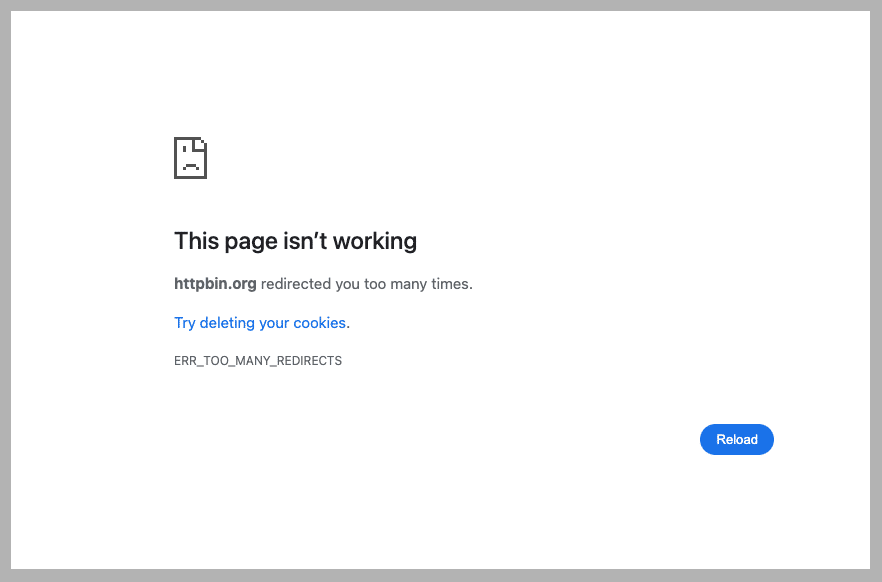
In Chrome, enter the URL of the original page. If the page displays ERR_TOO_MANY_REDIRECTS, it’s stuck in a redirect loop.
Note: Firefox and Safari don’t display the ERR_TOO_MANY_REDIRECTS message specifically. They show their own page error indicating the site redirected too many times.
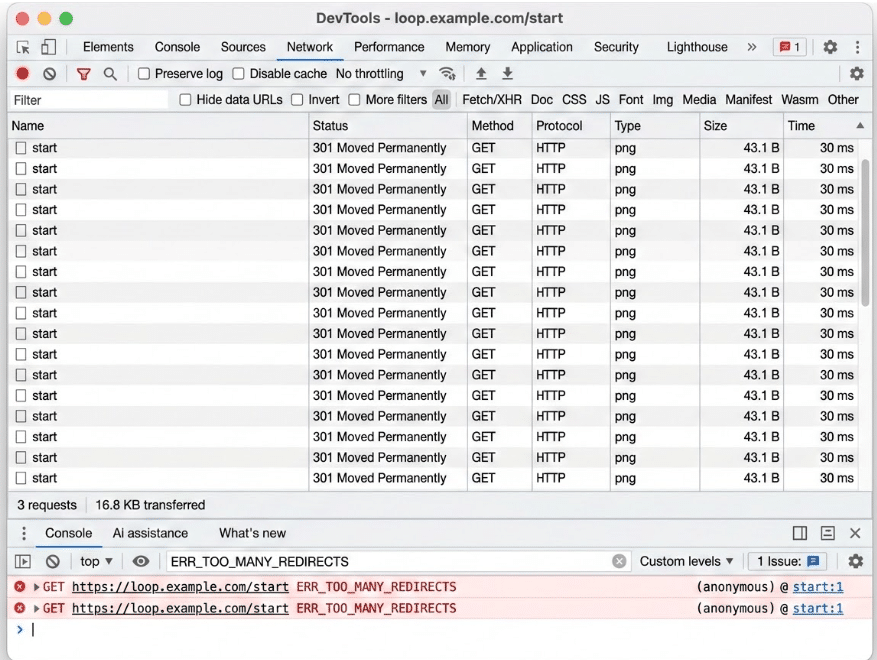
For more detail, open Chrome DevTools, go to the Network tab, and look for the repeating requests that end in a redirect error.
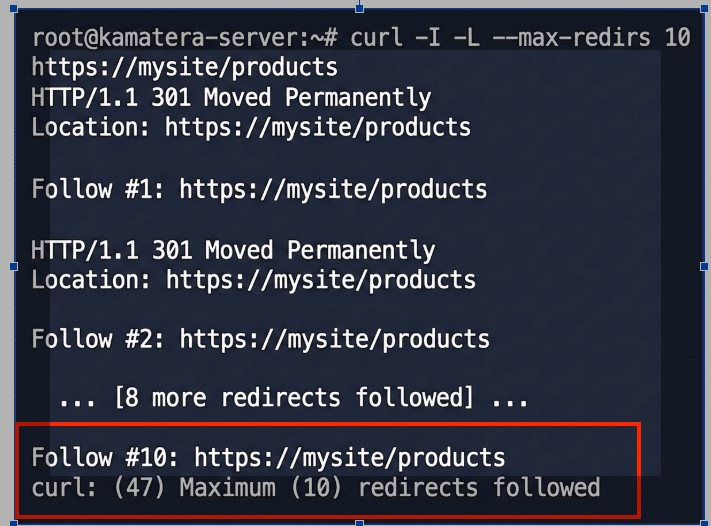
You can also detect the problem from the command line with curl. curl is a CLI tool that sends a request to a URL and shows you the response. Here’s how to use it to detect redirect loops:
curl -I -L --max-redirs <number> <url>
-I returns the HTTP headers and status code, -L follows each redirect step, –max-redirs <number> caps how many redirects curl will follow before giving up, and <url> is the site’s URL. For example:
curl -I -L --max-redirs 10 https://mysite/products
If the URL is genuinely looping, curl will follow redirects up to the limit you set (10, in this example), then stop and return an error: curl: (47) Maximum (10) redirects followed. That 47 is curl’s internal error code for “too many redirects,” not a count of additional redirects it followed. Seeing this error, combined with the same URLs repeating in the -L output, confirms a loop.
Fixing redirect loops
Now that you know how to detect a loop, here’s how to fix each of the four common causes.
| Cause | Problem | Solution |
|---|---|---|
| Incorrect rule order | A site renamed /shop to /store, where /shop redirects to /store, with one exception: /shop/checkout uses an embedded payment widget that can’t handle redirects. All three rules use regex locations (~*), and NGINX checks regex locations in file order, using the first match:
location ~* ^/shop(.*)$ {
  return 301 /store$1;
}

location ~* ^/shop/checkout$ {
  proxy_pass http://checkout_backend;
}

location ~* ^/store/checkout$ {
  return 301 /shop/checkout;
}
Because the broad ^/shop(.*)$ rule is listed first, it matches /shop/checkout before the specific rule ever gets checked, sending it to /store/checkout, which redirects back to /shop/checkout, looping. |
Change the checkout rule to a prefix location with the ^~ modifier. This tells NGINX that if this is the longest matching prefix, skip regex matching entirely, regardless of where the rule sits in the file:
location ^~ /shop/checkout {
  proxy_pass http://checkout_backend;
}

location ~* ^/shop(.*)$ {
  return 301 /store$1;
}

location ~* ^/store/checkout$ {
  return 301 /shop/checkout;
}
|
| Missing or improperly used flags |
rewrite ^/(.*)$ /product/$1 last; First pass: request for /1 matches ^/(.*)$, rewrites to /product/1, and last triggers a new location search. Second pass: /product/1 also matches ^/(.*)$, and gets rewritten to /product/product/1. This repeats until NGINX hits its internal redirect cycle limit and returns a 500 Internal Server Error. |
Replace last with break to stop further rewrite processing within the current block instead of re-triggering a location search. |
| RegEx issues |
location ~* ^/(.*)$ {
  return 301 /en/$1;
}
Nothing in the regex excludes a path that’s already prefixed with /en/, so a request to /en/somepage matches the same rule and gets redirected to /en/en/somepage, and so on. |
Use a negative lookahead to exclude paths that already start with /en/:
location ~* ^/(?!en/)(.*)$ {
  return 301 /en/$1;
}
|
| Reverse proxy mismatches | A load balancer or CDN in front of NGINX terminates TLS, accepting the visitor’s HTTPS connection, then forwarding the request to NGINX over plain HTTP internally. A rule that checks $scheme sees the internal HTTP connection on every request, including ones that were HTTPS from the visitor:
if ($scheme != "https") {
  return 301 https://$host$request_uri;
}

location / {
  proxy_pass http://backend;
}
|
Trust the header the proxy sets instead of NGINX’s own view of the connection:
if ($http_x_forwarded_proto != "https") {
  return 301 https://$host$request_uri;
}

location / {
  proxy_pass http://backend;
}
|
Conclusion
URLs change routinely as sites get reorganized, products get renamed, domains get migrated, and site structures get redesigned. NGINX’s return and rewrite directives handle these changes by redirecting old addresses to new ones. When configured correctly, redirects work smoothly and transparently behind the scenes. When they fail, visitors can’t find the page and search engines can’t crawl the site, limiting its discoverability.
In this article, we looked at what triggers redirect loops on NGINX, how to detect them, what causes them, and how to fix them. The cause isn’t always in NGINX’s configuration itself. It can also come from the application behind it, a reverse proxy or CDN, or interactions between HTTP and HTTPS or hostname canonicalization. Once you’ve identified where the loop originates, the fix is usually straightforward.