



Portainer is a lightweight web-based tool that simplifies the management of Docker and Kubernetes environments. Instead of relying on complex command-line operations, it provides an intuitive graphical interface to manage containers, images, networks, and volumes. In this guide, we’ll walk through how to deploy Portainer on Kamatera using the app image for a quick and efficient setup.
Log in to Kamatera cloud console
The very first step in deploying Portainer on Kamatera is to log in to the Kamatera cloud management console.
Configure your cloud
Once logged in, you will be presented with the dashboard. This is where you’ll manage servers, networking, and storage.
Step 1. Expand the My Cloud option on the right bar. Under Create New Server, choose a zone.
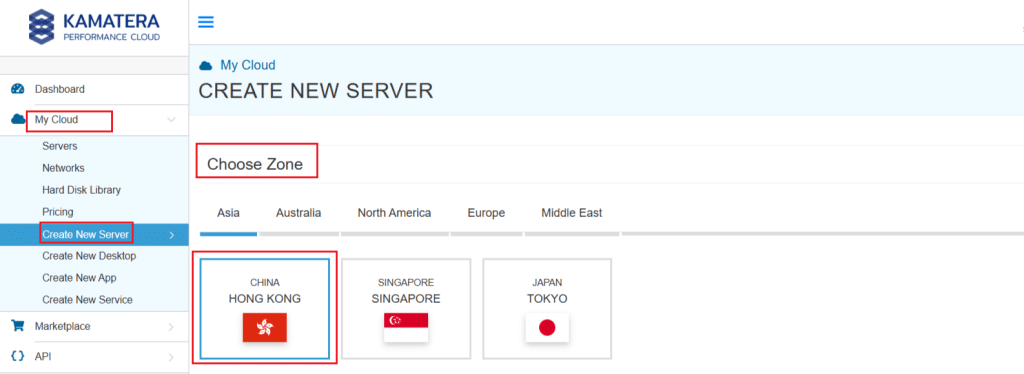
Step 2. Scroll down to the App Images tab and look for the Portainer option. Once selected, choose the version associated with the app image.
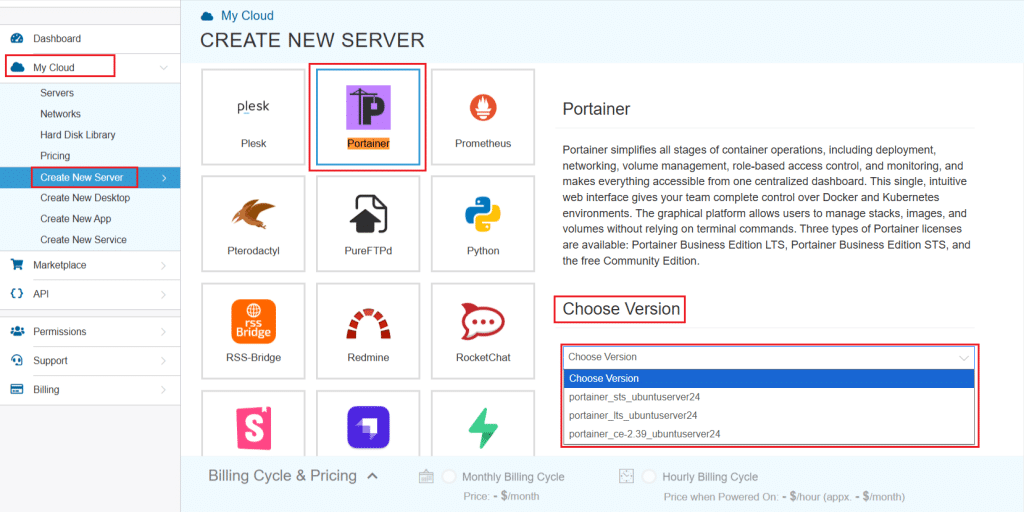
Note: Here, we are using the Community Edition (CE) version as it is free, stable, and suitable for most users. LTS is recommended for long-term production environments, while STS is intended for testing newer features.
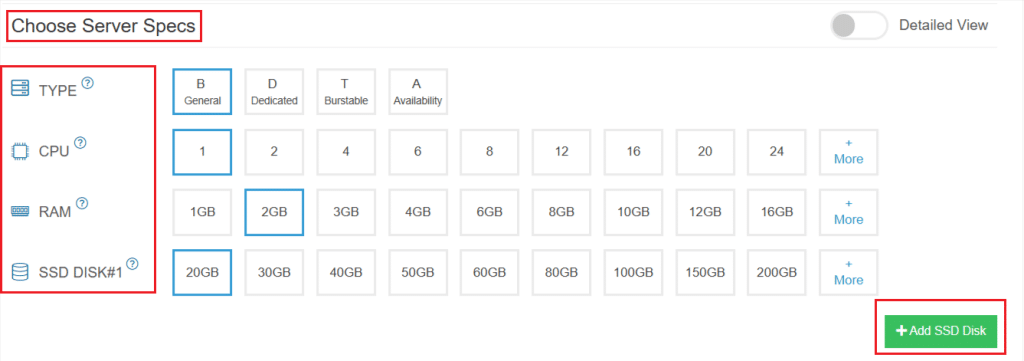
Step 3. Then scroll down, enable the Detailed View toggle, and input your server specifications.
Step 4. Choose the type, CPU, RAM, and disk storage that is appropriate for your needs. Click on the help button alongside to learn more about the settings. You can add more disk storage in case required.
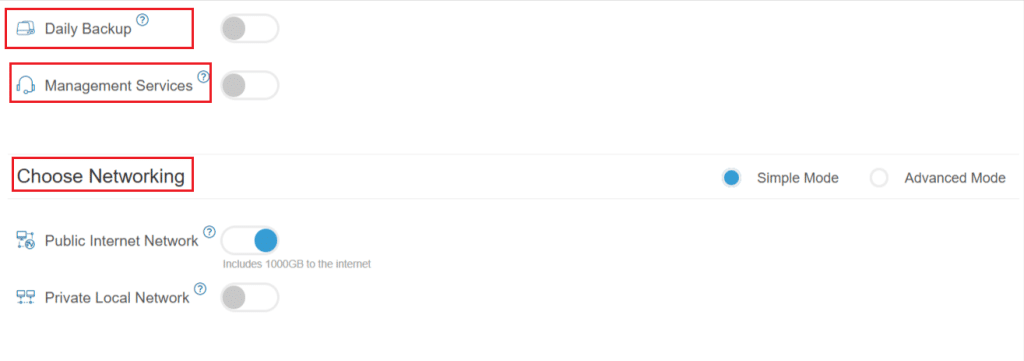
Step 5. Enable Daily backup option if a daily backup of your server storage is needed.
Step 6. Enable Management Services toggle to have your server managed by Kamatera’s professional services support team.
Step 7. Choose Networking option, either simple or advanced mode. This section lets you define how your server will connect to the internet and how much outbound data it can use per month.
- Simple mode: Choose WAN or LAN.
- Advanced mode: NIC #1 (Network Interface Card)
-
- WAN (selected for this example): This means your server will be accessible from the internet. It will get a public IP.
- The other options (LAN, private, etc.) are only needed for internal or isolated setups, which are not relevant for a public-facing Portainer instance.
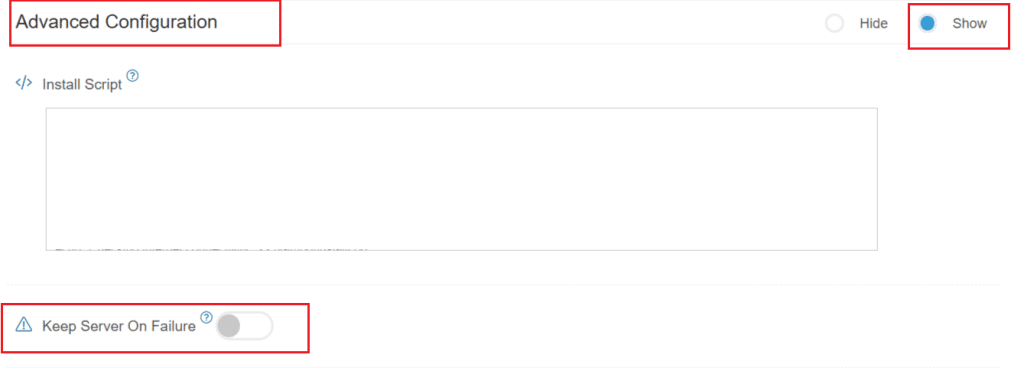
Step 8. Proceed to Advanced Configuration, if your setup requires it.
- Keep Server On Failure: This option controls what happens if something goes wrong while setting up your server. For example, if a startup script fails. If this setting is OFF (default), Kamatera will automatically delete the server if the setup fails. It becomes useful if you want to avoid paying for a broken setup. But you won’t be able to debug what went wrong. If this setting is ON, Kamatera will keep the server running, even if something fails during the initial setup. This lets you log in, investigate the issue, fix problems manually, and retry setup if needed.
Recommended for most users:
Keep it OFF unless you’re running custom scripts or complex configurations. For basic setups like Portainer, the default (OFF) is usually fine.
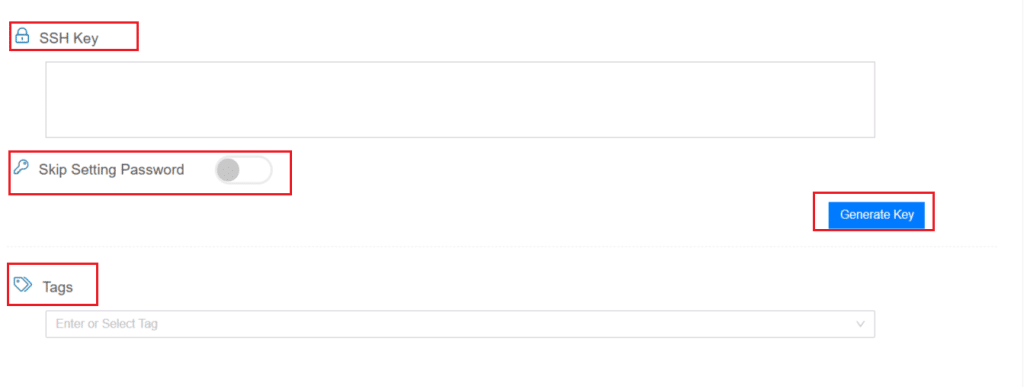
- SSH key: Allows you to securely connect to the server without a password (recommended for better security).
- Skip Setting Password: If enabled, your server will only allow SSH key login—no password access.
You can click “Generate Key” if you don’t already have one. Input additional server notes and tags, if necessary.
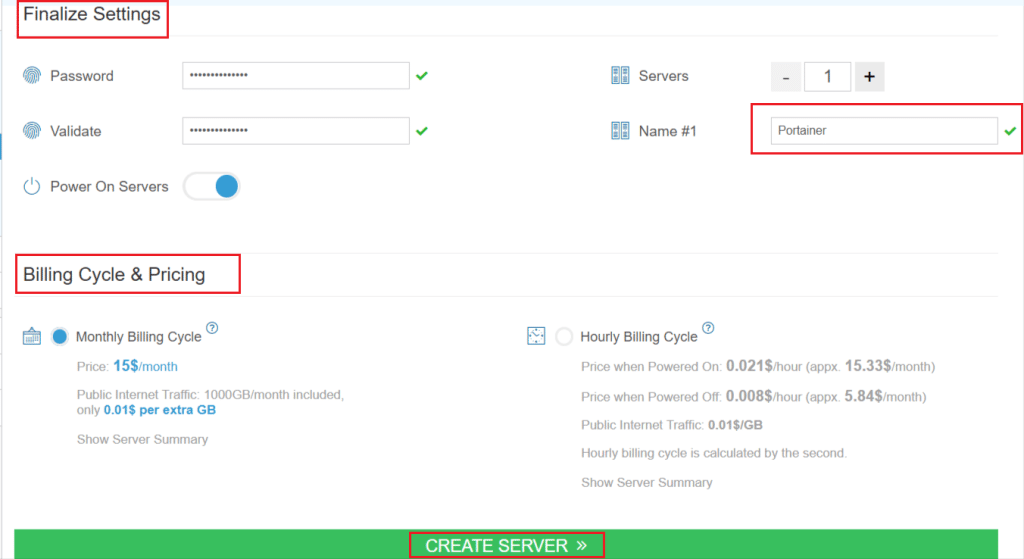
Step 9. Finally, choose a strong password, select the number of servers, and input a server name.
Step 10. Once all details are inputted, choose billing cycle and click on Create server button.
You can check the server creation progress under Server > Task Queue.
Once completed, the server will be visible under the same Servers panel.
Accessing Portainer dashboard
Once your Kamatera server is deployed using the Portainer app image, you can access the Portainer UI through your browser.
- Copy the public IP address of your Kamatera server
- Open your browser and enter: http://<your-server-ip>:9000
Or (recommended if HTTPS is enabled): https://<your-server-ip>:9443
- You should see the Portainer setup screen
Set up your Portainer environment
When accessing Portainer for the first time, you’ll need to configure an admin account.
- Create a username and strong password
- Click Create user
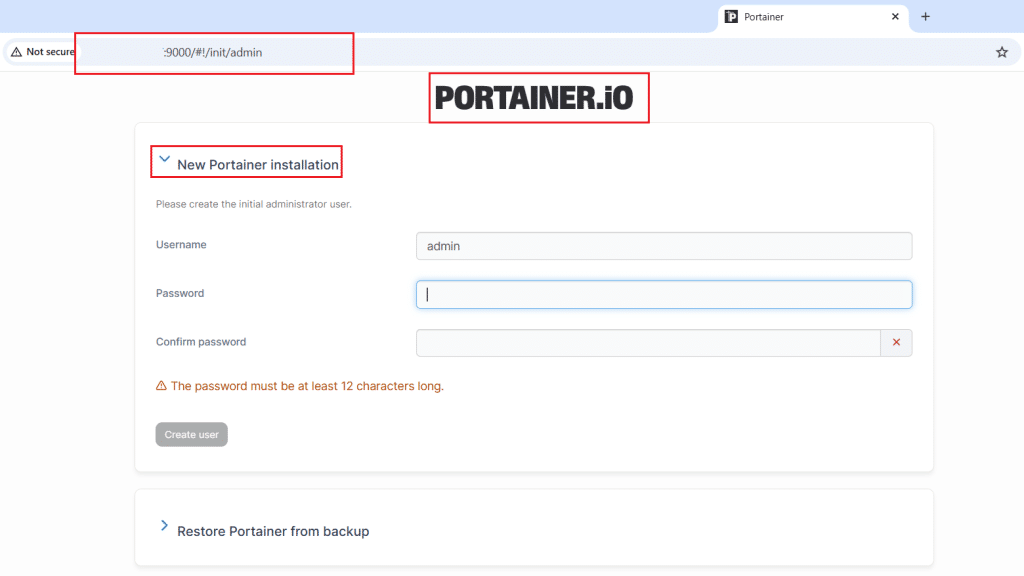
Now, select an environment. Choose “Get Started” for local Docker environment.
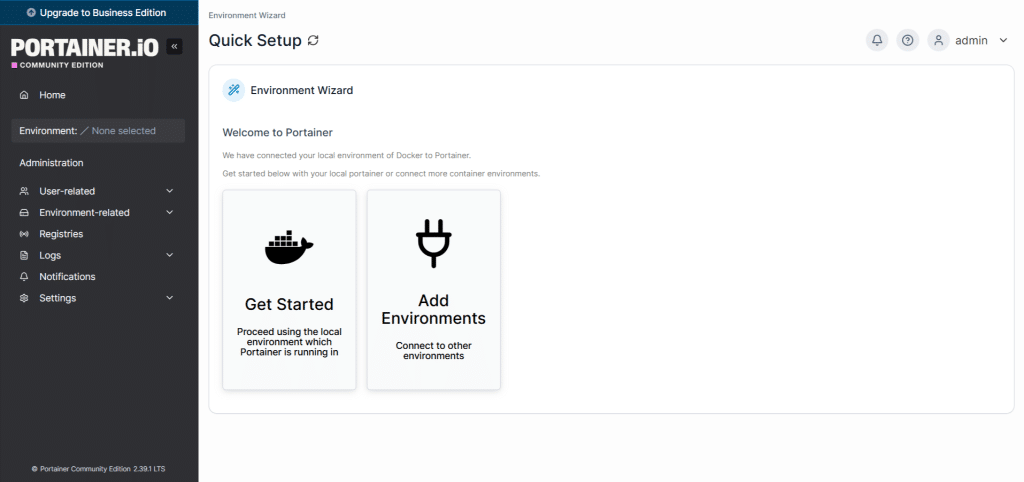
After a successful setup, your Portainer dashboard should look like this:
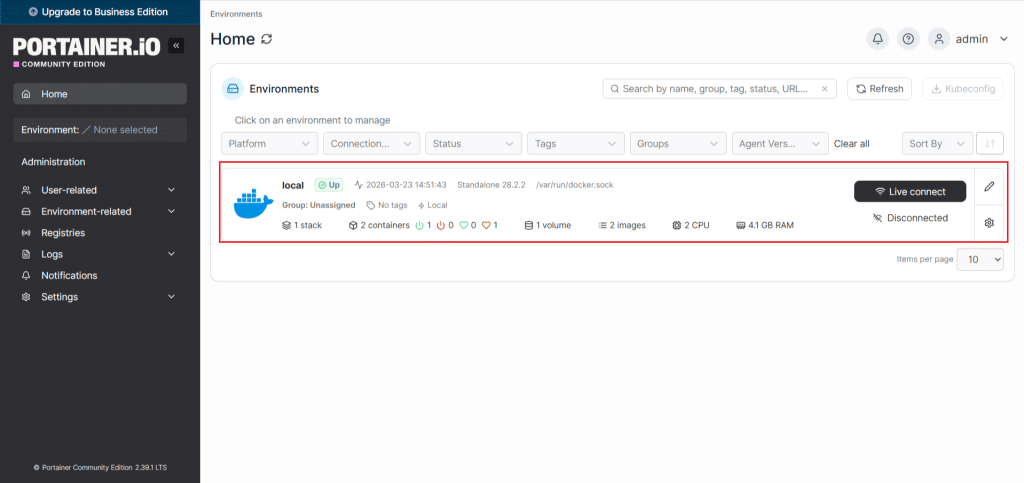
Deploy your first container
To validate your setup, deploy a simple container like NGINX.
- Go to Containers → Add container
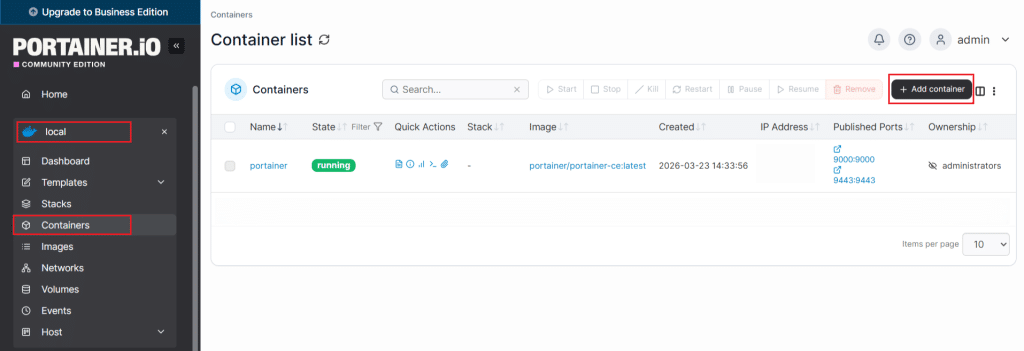
Creating a new container in Portainer
- Fill in:
- Name: nginx-test
- Image: nginx:latest
- Scroll to Port mapping
- Host: 80
- Container: 80
- Click “Deploy the container”
To verify the deployment
Open your browser: http://<your-server-ip>
Once deployed, the container can be accessed via the configured port.
Kamatera-specific configuration tips
- Open required ports
Ensure the following ports are accessible:
- 22 → SSH
- 9000 → Portainer HTTP
- 9443 → Portainer HTTPS
- 80/443 → Web apps
- Choose the right server size for you.
- Minimum: 1 vCPU, 1–2 GB RAM
- Recommended: 2 vCPU, 4 GB RAM for multiple containers
- Public vs private networking
- Use public IP for external access
- Use private networking for internal services
Security best practices
Even for a basic setup, include this to elevate your xy:
- Use HTTPS (port 9443) instead of HTTP
- Set a strong admin password
- Restrict access via firewall rules
- Regularly update containers
Conclusion
By following this guide, you have successfully deployed Portainer on Kamatera and launched your first containerized application. Portainer’s intuitive interface makes container orchestration accessible, even for beginners. Using Kamatera’s app image simplifies the setup process, allowing you to focus on managing and scaling your container workloads efficiently.