



As a reseller, you have the ability to provision and manage user accounts across multiple customer organizations, giving you centralized control over access management. This guide will walk you through the process of creating new user accounts for your clients.
As a Kamatera reseller, your ability to quickly and efficiently onboard your clients is key to growing your business. And creating new users is one of the most common administrative tasks you’ll perform. Whether you’re onboarding a new client, adding team members to an existing account, or setting up temporary access for contractors, this step-by-step guide will help you create user accounts quickly and correctly.
Let’s get started on adding your next user!
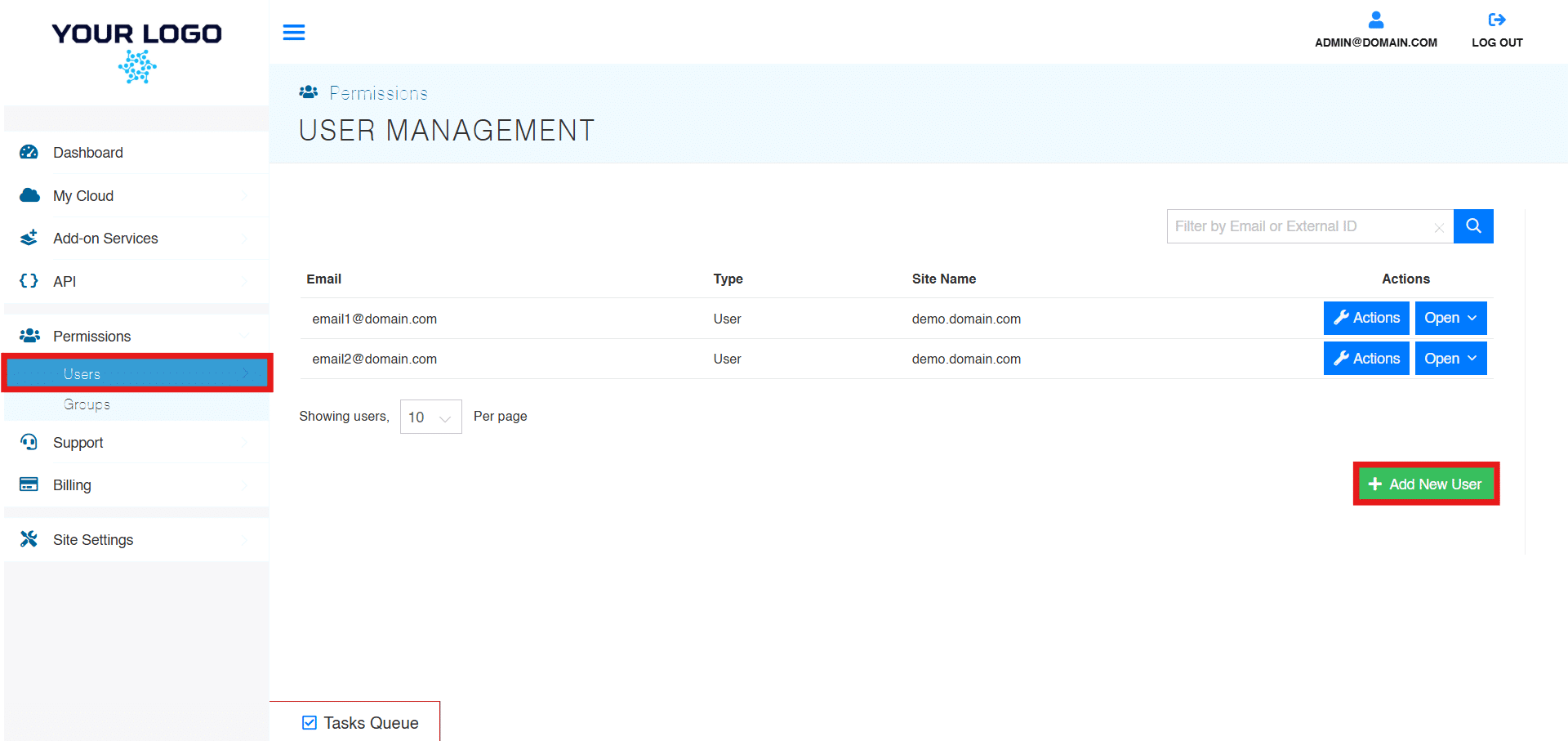
- From the administrative panel on the left side of the screen, select “Permissions” > “Users.”
- Next, select “Add New User” from the bottom right corner of the User Management table.
- Enter the new user’s information and select “Add User.”
And that’s it! You have successfully created a new user to your reseller account. You can now create a password for them or they can create one themselves, via email. You can also use this menu to request email verification of the user account.