



As a Kamatera reseller, one of the most powerful features at your disposal is the ability to fully control your profitability and billing structure. This guide shows you exactly how to assign a specific price list immediately after you create a new client account, or how to assign a price list to an already existing client account.
Assigning the correct price list is crucial: it determines the billing rate for every single resource your client consumes, from CPU cores to storage. Whether you need to apply your standard retail rates, offer a custom discount for a high-volume client, or simply track costs effectively, this process ensures your pricing model is applied accurately from day one.
Let’s ensure your new client is set up for success.
How to assign a price list to a new user
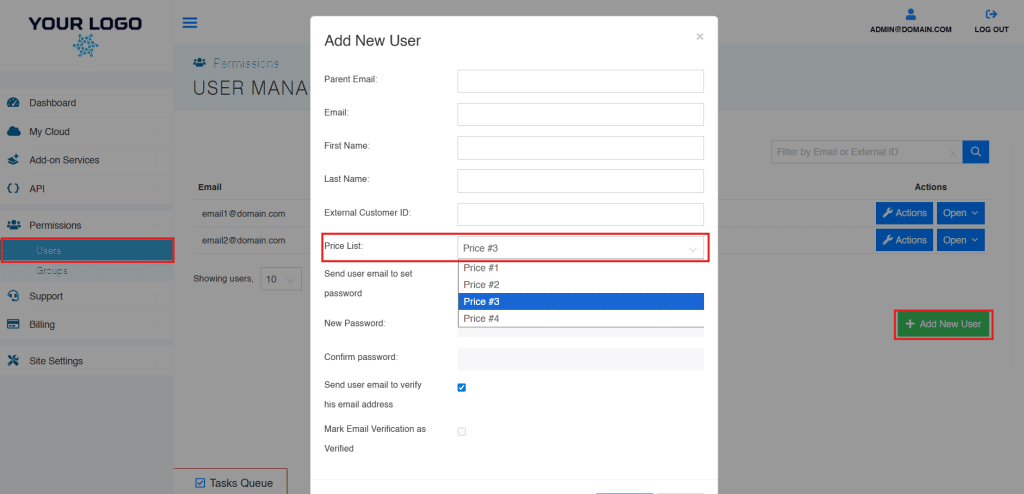
- From the administrative panel on the left side of the screen, select “Permissions” > “Users.”
- On the bottom of the User Management page, select “Add New User.”
- Input the new user information and select the appropriate pricelist from the “Price List” dropdown.
- Select “Add User.”
How to assign a price list to an existing user
- From the administrative panel on the left side of the screen, select “Permissions” > “Users.”
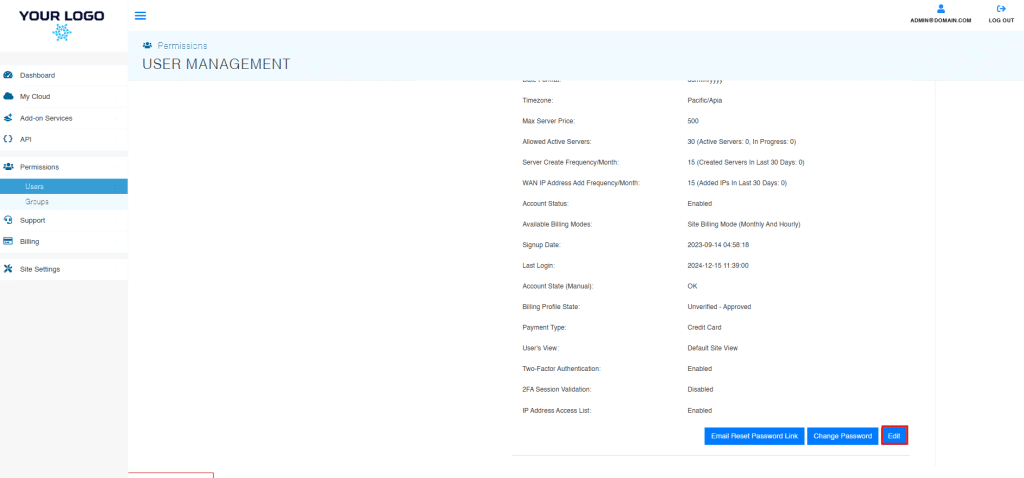
- Select the User from the User Management list.
- From the Users tab – General Info, select “Edit.”
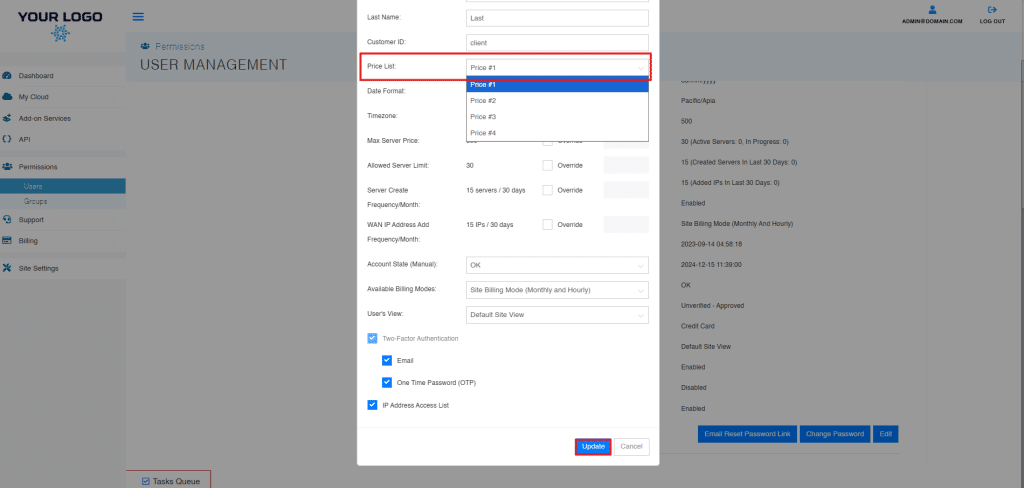
- Select the pricing list from the dropdown menu.
- Select “Update.”
And that’s it! You’ve successfully mastered the process of assigning a new price list to both new users and existing users.